How to Live Stream a Tournament on YouTube from Your Phone – Step-by-Step Guide
You don't need a studio to stream a tournament: a smartphone is enough. Here's what gear to prepare, how to go live on YouTube, and how to broadcast from several courts at once.
 Redakcja TG
Contents
- Why stream your tournament?
- What do you need to stream from a phone?
- What internet do you need to live stream a tournament?
- How to live stream a tournament step by step with TGapp Stream
- Several courts? Several streams at once
- Practical tips before your first live stream
- Who is phone streaming for?
- Frequently asked questions
A few years ago, streaming a tournament meant cameras, a video mixer, a laptop running OBS, and someone to manage it all. Today, a smartphone and a stable internet connection are enough for a basic broadcast. In this guide we show, step by step, how to live stream a tournament on YouTube from your phone, how to prepare technically, and how to share the link with fans.
Why stream your tournament?
- Parents and fans can watch from anywhere: not everyone can make it to the venue, and youth games have a huge remote audience.
- Sponsors get real reach: a banner in the hall is seen by a few hundred people, a stream and its recording by several times more.
- A professional image: a tournament with a live stream attracts more participants to the next edition.
- A match archive: the recording stays on your channel, so players and coaches can come back to it for analysis.
What do you need to stream from a phone?
- A smartphone: ideally with a good rear camera. Newer phones handle poor indoor lighting better.
- A tripod or mount: a steady shot from a high position (for example, the stands) looks far better than handheld footage.
- A stable internet connection: venue Wi-Fi or good LTE/5G coverage. Before the event, test the upload speed from the spot you’ll stream from.
- Power: streaming drains the battery fast, so bring a power bank or an extension cord.
- A YouTube channel with live streaming enabled: YouTube may require channel verification and activation can take a while, so do it a few days before the event.
What internet do you need to live stream a tournament?
The most common reason a stream keeps dropping isn’t the phone, it’s the connection. What matters is upload speed, not the download speed that carriers usually advertise. A few practical rules:
- Test the upload where you’ll stream from: run the speed test in the stands, not in the venue office. Sports halls often have weak coverage.
- Leave headroom: for 720p, plan for at least a few Mbps of steady upload, and noticeably more for 1080p. If the connection hovers at the limit, a stable 720p stream beats a stuttering 1080p one.
- Don’t share Wi-Fi with the crowd: an open venue network with a hundred fans’ phones on it gives out at the worst moment. Ask for a separate network or use your own LTE/5G.
- With several courts, multiply by the number of phones: three streams at once need three times the upload.
Channel requirements, enabling live streaming, and the rules for streaming from mobile devices are described in the official YouTube Help. It’s worth reading before your first live stream, as the rules can change.
How to live stream a tournament step by step with TGapp Stream
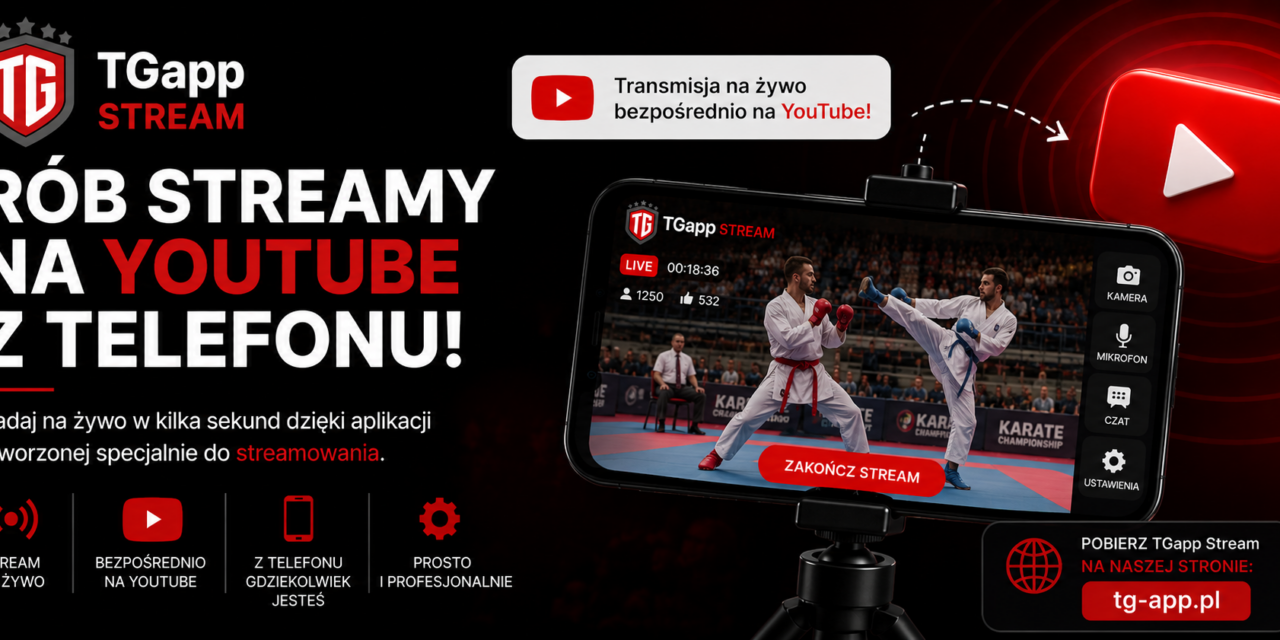
TGapp Stream is the Turniej Generator mobile app that sends video from your phone straight to YouTube. You create stream keys in the Turniej Generator panel, so the whole event (tournament, results, and stream) is managed in one place.
- Create a stream in the panel. After logging in at tg-app.pl, go to My account → YouTube Stream, create a new stream, and copy the URL and stream key.
- Install the app on your phone. TGapp Stream is available for Android (an iOS version is in the works).
- Enter the stream details. Paste the URL and stream key into the app.
- Go live. Starting the broadcast takes one tap, and the app shows the stream status.
- Share the link. The stream link appears on the tournament page in Turniej Generator, and you can also post it on your club website and social media.
Several courts? Several streams at once
At tournaments played on several courts, mats, or fields at the same time, you can run as many streams in parallel as you have phones. Each court gets its own stream, and fans pick the one where their team or athlete is playing.
Practical tips before your first live stream
- Do a test run the day before, ideally from the same spot and at a similar time of day.
- Mount the phone horizontally and high up: a shot from above shows the whole court and people walking by won’t block it.
- Turn off notifications and battery saver: nothing should interrupt the broadcast.
- Take care of consent: state in the event rules that the tournament will be streamed. This matters especially at youth events.
- Add the score on screen: if you run a more advanced stream in OBS, see how to show the score and game clock in OBS automatically.
Who is phone streaming for?
- Sports clubs and academies: leagues, friendlies, and youth tournaments.
- Amateur and commercial tournament organizers: a consistent streaming standard without complex infrastructure.
- Schools and local governments: coverage of school competitions and local sports events.
Streaming is the icing on the cake. See what good tournament software should have, so results and the schedule are ready before you turn the camera on.
A real-world example: at the Magic Streetball Kęty 2026 3×3 basketball tournament, the stream showed two courts at once, each with a score bug fed live from the Turniej Generator electronic 3×3 scoresheet.
Frequently asked questions
Is a phone enough to stream a tournament?
For a basic stream, yes. You need a phone, a tripod, power, and a stable internet connection. Studio cameras and a video mixer only become useful for productions with multiple angles and graphics.
Can I stream several courts at the same time?
Yes. With TGapp Stream you can run as many streams at once as you have phones: each phone broadcasts a separate stream.
Where will fans find the stream link?
The link appears on the tournament page in Turniej Generator. You can also share it on your club website, on social media, and in messages to participants.
Does TGapp Stream work on iPhone?
The app is currently available for Android, and an iOS version is in the works.