An OBS Scoreboard Overlay That Updates Itself: OCR Live Scanner
Score and clock on your stream without manual clicking. Here's how OCR Live Scanner reads data from your scoring software and creates an overlay for OBS.
 Redakcja TG
Contents
A score bug with a game clock is what separates an amateur stream from a professional broadcast. A viewer who joins halfway through sees in a second who is leading, how much time is left, and which quarter it is. The catch is that someone has to keep it updated, and the stream operator already has their hands full. In this guide we show how to build an OBS scoreboard overlay that updates itself by reading the score and game clock from your scoring software, and how to design and set it up properly.
What should an OBS scoreboard overlay show?
A scoreboard overlay (or score bug) is a small graphic layered over the video, usually in a top corner of the frame. A good one is readable on a phone, doesn’t cover the action, and shows only what viewers actually need:
- team abbreviations (3–4 letters) or logos,
- the current score, in the largest and highest-contrast font,
- the game clock and period (quarter, half, set),
- depending on the sport: team fouls, shot clock, set scores, or timeouts left.
The fewer elements, the better. An overlay that takes up a quarter of the screen tires viewers and hides the most important thing: the game itself.
How is a scoreboard overlay usually done in OBS?
- Manually: the operator clicks points in a separate graphics program. It works, but in a fast game the overlay always lags a few seconds behind, and every mistake is visible to all viewers.
- Integration with the scoring system: the best option, but not every scoring program exposes its data.
- Image recognition (OCR): the system “reads” the score and clock straight from the scoring software’s screen. It works with practically any software.
In basketball, futsal, or handball the score changes every few dozen seconds and the clock never stops. Updating by hand means one person has to watch the court, the scoreboard, and the graphics panel at the same time. That’s why an automatic overlay isn’t a gimmick: it saves real work and prevents mistakes on air.
How does OCR Live Scanner work?
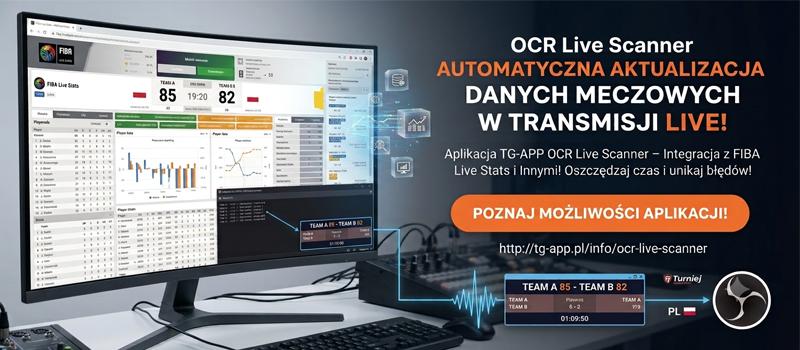
OCR Live Scanner reads the score and game clock from your scoring software, for example FIBA Live Stats, analyzes the data, and sends it to a dedicated scoreboard view. You add that view in OBS as a browser source.
- Choose the image source: for example, the scoring program’s window.
- Mark the score and clock areas: the preview shows right away whether the fields are set correctly.
- The system refreshes the data every second.
- Only match data is sent: no full video feed is uploaded.
- You get a ready-made overlay with the score and clock to add in OBS.
In short: scoring software → data capture and analysis → score/clock overlay view → OBS.
Adding the OBS scoreboard overlay step by step
The OBS setup takes a few minutes. The overlay is a regular web page with a transparent background, so you add it like any other browser graphic:
- In your OBS scene, click + in the Sources panel and choose Browser (Browser Source).
- Paste the overlay view URL generated in Turniej Generator.
- Set the source width and height to match your stream resolution (usually 1920×1080).
- Drag the overlay to the right spot in the frame, typically the top left or top right corner.
- If the overlay should only appear in some shots, add it to every camera scene and leave it out of break or ad scenes.
For a detailed description of browser source settings (including refresh options and custom CSS), see the official OBS documentation.
Common scoreboard overlay mistakes
- Font too small: most viewers watch sports streams on a phone. Check the preview on a smartphone before the game.
- The overlay covers part of the court, for example the basket or goal in a corner camera angle. Set up the camera and the overlay together.
- Clock out of sync: if the camera feed is delayed compared with the scoring software, the score can “spoil” the play. Check this during warm-up.
- No test before going live: mark the OCR areas and check several score changes before the stream starts.
- Too much information at once: player stats work better as separate graphics during breaks.
What do you gain?
- faster on-screen updates of the score and clock during the stream,
- less manual entry and fewer operator mistakes,
- consistent match data in the panel and on the overlay,
- the option to run a stream with a smaller crew: the operator focuses on cameras, not graphics.
Where does it work best?
In live-streamed tournaments and leagues where the score is kept in scoring software and has to be shown to viewers quickly without extra work for the operator: for example basketball, volleyball, handball, or futsal. It is especially useful at multi-court tournaments, where each stream has its own overlay and one producer handles them all.
Not running an advanced stream yet? Start with the simpler option: streaming a tournament on YouTube from your phone. Running 3×3 games? See the electronic 3×3 scoresheet with statistics ready for OBS. For games kept on the Turniej Generator scoresheet, the score bug takes data straight from the scoresheet, with no OCR needed. That’s how the two-court stream worked at the Magic Streetball Kęty 2026 3×3 basketball tournament.
The overlay is the icing on the cake. See what good tournament software should have, so results and the schedule are ready before you go live.
Frequently asked questions
Which scoring software does OCR Live Scanner work with?
Any software that shows the score and game clock on screen, for example FIBA Live Stats. You just mark the score and clock areas.
How often does the OBS scoreboard overlay update?
The data refreshes automatically every second.
Does the system send video to a server?
No. Only the extracted match data is sent, without the full video feed.
Can I use the overlay in software other than OBS?
Yes. The overlay is a web page with a transparent background, so it works in any streaming software that supports a browser source, such as Streamlabs or vMix.