Visual Schedule Planner: How to Build a Category Schedule Across Several Tatami
80 categories, several tatami and two days of competition. The new visual schedule planner in Turniej Generator lays out categories on a timeline: drag them onto a tatami, the end time is calculated from the number of matches, and the planner instantly shows overlaps and athletes entered in two categories at once.
 Redakcja TG
Contents
At competitions with many categories – karate, judo, taekwondo, wrestling – the biggest job before the first bow is the category schedule: which category, on which tatami, at what time. With 50–80 categories, working out the times by hand in a spreadsheet takes an evening, and a single change pushes everything after it. The new visual schedule planner in Turniej Generator turns that into a few minutes of work: you drag categories onto a timeline and the planner does the maths.
Visual schedule planner – what exactly does it do?
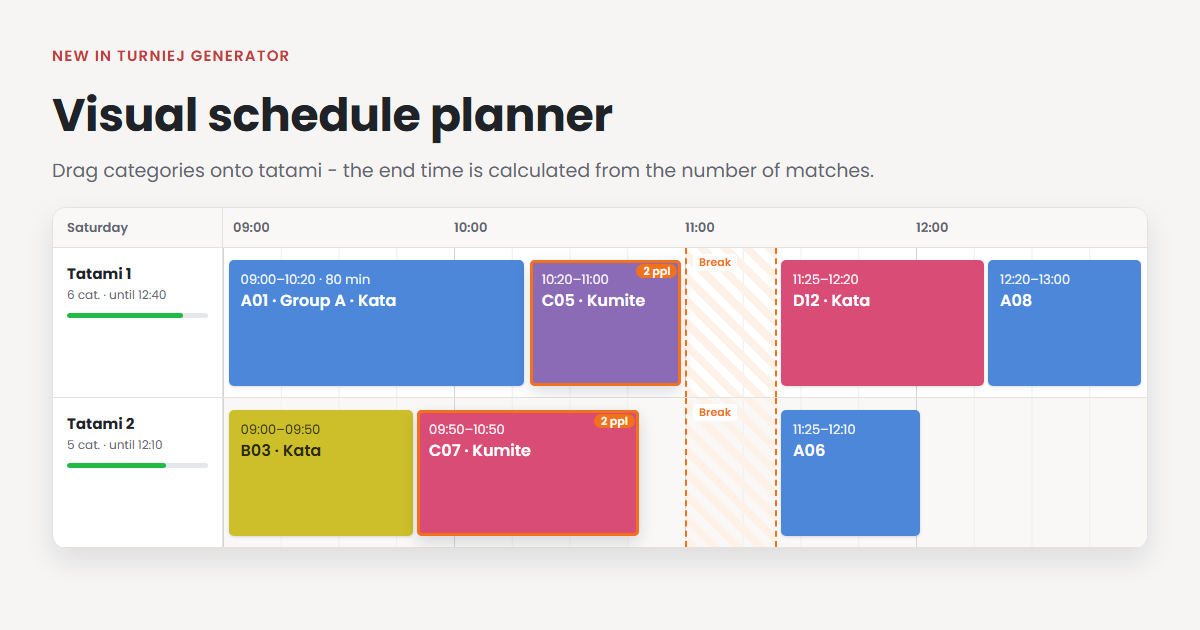
The planner shows a competition day as a timeline: each row is one place (e.g. “Tatami 1”, “Mat 2”) and each block is one category. On the left is a list of categories that do not have a time or a place yet.
- category duration is calculated for you – number of matches × minutes per match + buffer; you only set the start,
- drag and drop – move categories between tatami and times, and change the length by dragging the edge of a block,
- nothing overlaps – when you insert a category before others, the following ones move later,
- athlete conflicts – the planner shows categories where the same athletes would compete at the same time, with their names and the other category,
- breaks – e.g. a lunch break, on one tatami or on all of them,
- category colours – e.g. one colour for a whole age group,
- undo and batch saving – every change can be undone, and it reaches the schedule only after you click “Save changes”.
How to build a category schedule in the planner – 5 steps
You open the planner in the tournament schedule, with the “Visual schedule planner” button above the category table.
- Calculate the matches – click “Calculate number of matches” so the planner knows how long each category takes. A category without this data gets a default duration (e.g. 30 minutes), which you can change in the planner settings.
- Pick a day and add places – the tournament days are in the top bar. Add places such as Tatami 1 and Tatami 2 in the field at the bottom of the category list.
- Lay out the categories – drag a category from the “To schedule” list onto a tatami and time. To place the whole list at once, use “Tools → Schedule unscheduled” – the planner puts each category where a tatami finishes earliest, so the load stays even.
- Fine-tune the layout – move categories, add a lunch break, and check the warnings about overlaps and athlete conflicts.
- Click “Save changes” – only then does the schedule reach the tournament and the live results.
Example: two tatami and 80 categories
A children’s karate competition: 80 kata and kumite categories, two tatami, start at 9:00. A kata category with 14 athletes means, for example, 13 matches of 1.5 minutes plus a 10-minute buffer – about 30 minutes. The planner works this out for every category separately.
| Category | Athletes | Matches | Duration | Place | Time |
|---|---|---|---|---|---|
| A01 – kata, group A | 14 | 13 × 1.5 min + 10 | 30 min | Tatami 1 | 9:00–9:30 |
| B03 – kata, group B | 10 | 9 × 1.5 min + 10 | 25 min | Tatami 2 | 9:00–9:25 |
| A07 – kumite, group A | 8 | 7 × 2 min + 10 | 25 min | Tatami 1 | 9:30–9:55 |
If an athlete from category A07 is also entered in a kumite category set on Tatami 2 at 9:40, the planner outlines both categories in orange and shows the athlete’s name. Move one of them and the warning disappears straight away, even before you save.
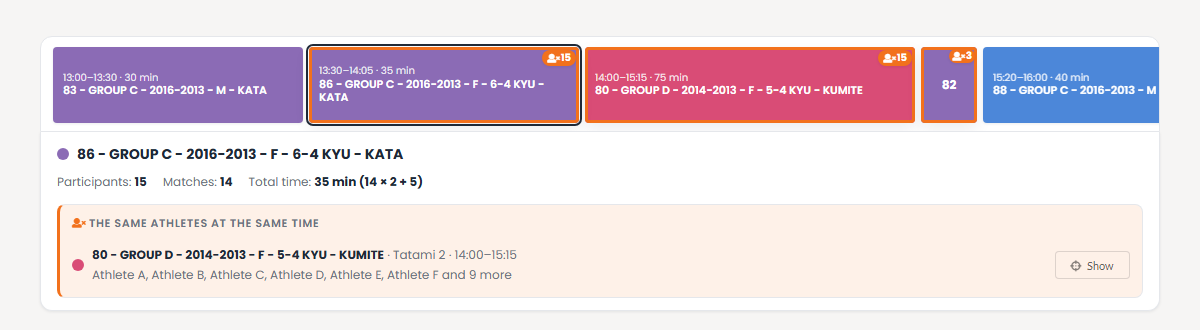
Overlaps, athlete conflicts and breaks
- Overlaps on a tatami – two categories overlap on the same place. The “Resolve conflicts” tool sorts them out in one click.
- Athlete conflicts – the same athletes in two categories at the same time, also on different tatami. The planner uses the same data as the category time conflicts report on the participants list, but checks it live while you build the schedule.
- Breaks – categories do not cross a break when you move them or use automatic planning. Breaks are visible only in the planner and do not appear in the schedule shown to athletes.
Good to know before you start
- The planner works on a computer. On a phone you will be asked to open it on a larger screen.
- It is best if one person builds the schedule – when two people save changes at the same time, the later save wins.
- The planner has a “Help” button that explains every feature step by step, and keyboard shortcuts: the arrow keys move a category, Delete takes it off the schedule, and Ctrl+Z undoes a change.
- The planner replaces the previous visual schedule editor.
Match schedules for team tournaments and leagues are built with a different tool – see our guide to the schedule generator.
Frequently asked questions
Where do I find the visual schedule planner?
In the tournament schedule – the “Visual schedule planner” button above the category table. The planner is available to the tournament organizer.
How does the planner know how long a category takes?
From the number of matches, the minutes per match and the category buffer. You can recalculate the number of matches with the “Calculate number of matches” button. When this data is missing, the planner uses the default duration from its settings.
Do athletes see changes in the planner straight away?
No. Changes reach the schedule only after you click “Save changes”. Until then you can undo or discard them freely.
Does the planner stop an athlete from competing in two places at once?
Yes. When the same athletes are in two categories set for the same time, the planner marks both categories and shows who is affected. It leaves the decision about which category to move to the organizer.