Electronic Basketball Scoresheet 5×5 – How to Run the Scorer’s Table in Your Browser
Pen colours, end-of-quarter lines, team fouls and crossed-out empty boxes – the electronic basketball scoresheet 5x5 does it for the scorer. It runs in your browser with no login, and after the game you print a finished scoresheet. We are looking for testers!
 Redakcja TG
Contents
- Electronic basketball scoresheet – what is it?
- What the electronic basketball scoresheet does for the scorer
- How to run a game on the electronic scoresheet – 6 steps
- App clock or minutes from the venue scoreboard?
- Where is the electronic basketball scoresheet saved?
- Test version – share your feedback
- Frequently asked questions
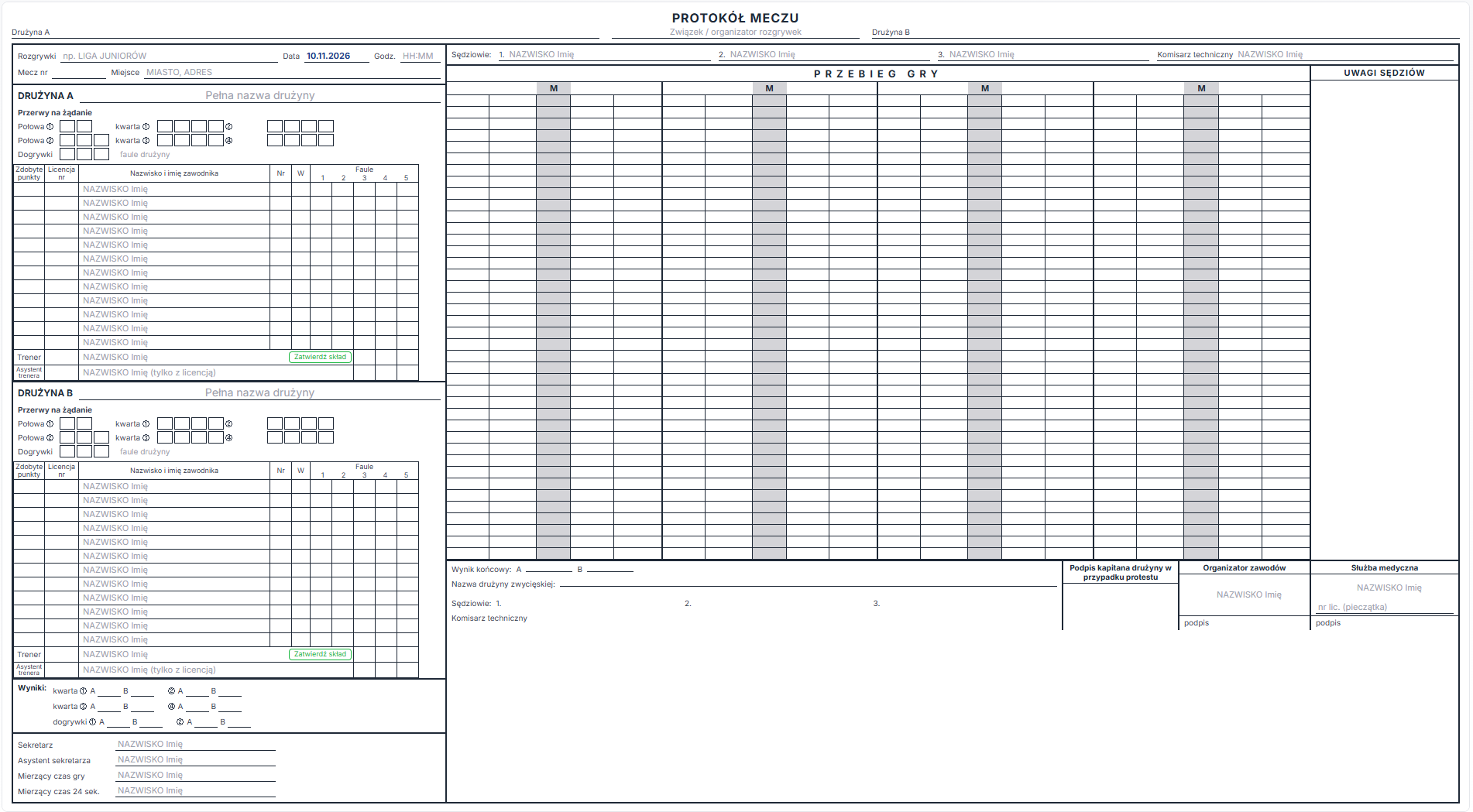
A paper basketball scoresheet comes with dozens of rules: three pen colours, a line under the last row of each quarter, the letters B and A when teams switch baskets, team fouls copied from player fouls, crossing out empty boxes at the end of the game. One slip and the scoresheet looks wrong – and pen cannot be erased. That is why we built an electronic basketball scoresheet for 5×5 games: the scorer clicks the events and the scoresheet draws every entry according to the scoresheet rules. This is a test version – try it at tg-app.pl/protokol-5×5 and tell us what to improve.
Note: the scoresheet follows the Polish scoresheet-writing rules and its interface is currently available in Polish only.
Electronic basketball scoresheet – what is it?
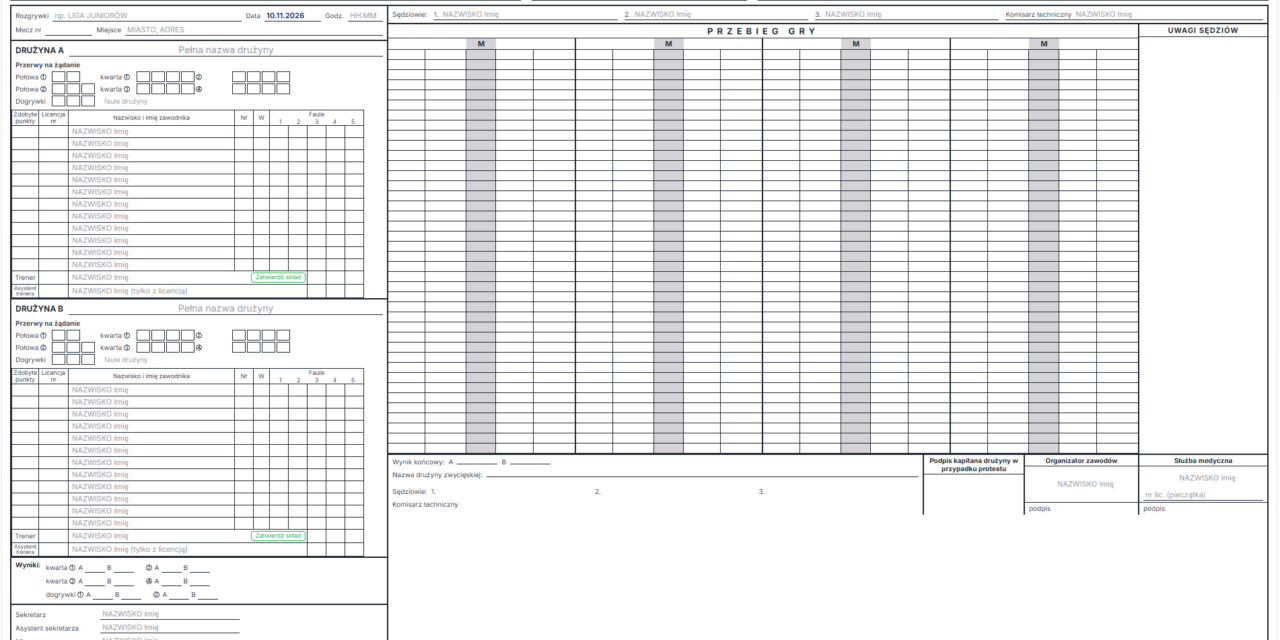
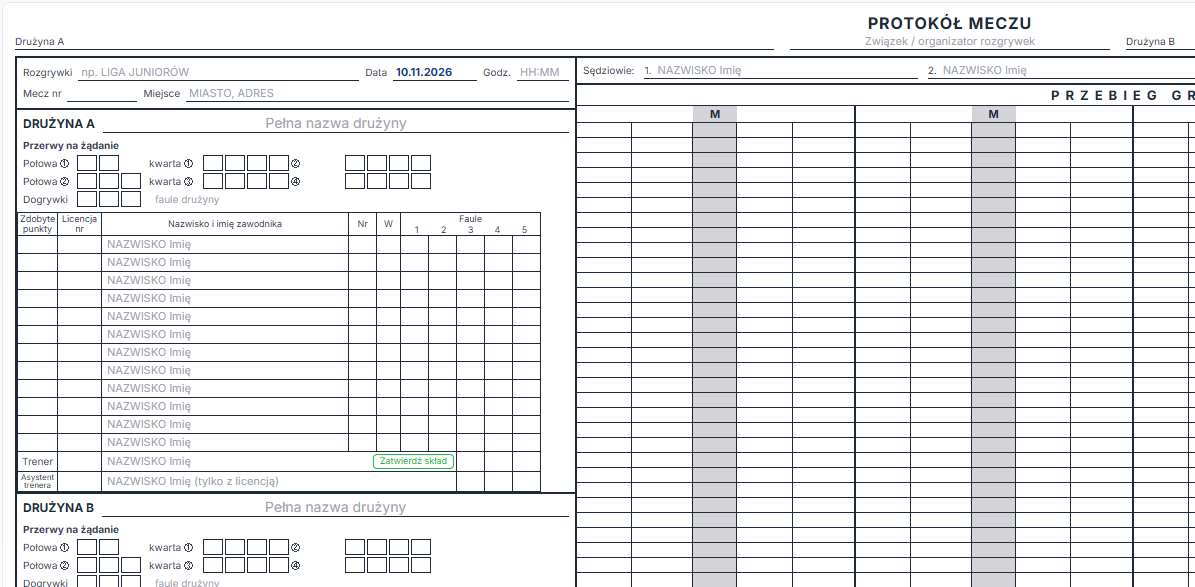
It is a page in your browser that looks like a filled-in game scoresheet – with the running score, team rosters, fouls, timeouts and the score-by-period box. Above the sheet there is a scorer’s panel: you pick a player and click what happened. You never type into the boxes by hand – the electronic basketball scoresheet knows which box, which colour and which index to use.
No login and no tournament setup are needed. You open the page on a laptop or tablet at the scorer’s table and run the game.
What the electronic basketball scoresheet does for the scorer
- colours like on paper – 1st and 3rd quarter in blue or black, 2nd and 4th in red, overtime in green,
- running score – player number and the current game score, each minute written only once, a circle for three-pointers, a bracket for free throws and a dash for a missed one,
- end of quarter and half – a line under the last row, the letters B and A after the teams switch baskets, the half-time score rewritten and the period score entered,
- full foul notation – minute with the number of free throws and the foul type (U, T, C, B, D, F), GD after a second unsportsmanlike foul, a “B” technical for the coach when a bench member is disqualified, a player fouled out after 5 fouls,
- automatic team fouls – without coach and fight fouls, with overtime counted together with the 4th quarter, and a note when the next foul means free throws,
- timeouts – 2 in the first half, 3 in the second (no more than 2 in the last 2 minutes of the 4th quarter) and one in each overtime,
- crossing out – empty roster rows, unused timeouts, empty foul boxes and the remaining rows of the running score, each in the correct colour,
- overtime and forfeits – including a forfeit during the game when a team runs out of players,
- player points and checks – each player’s total, “0” for players who played without scoring, and a checklist that the period scores and player points add up to the final score.
How to run a game on the electronic scoresheet – 6 steps
- Open the scoresheet – go to tg-app.pl/protokol-5×5 on a laptop or tablet. The game date is set to today.
- Enter the game details and rosters – competition, venue, full team names, referees and players. Surnames are turned into capitals automatically, licence numbers are cut to the last three digits and players are sorted by number.
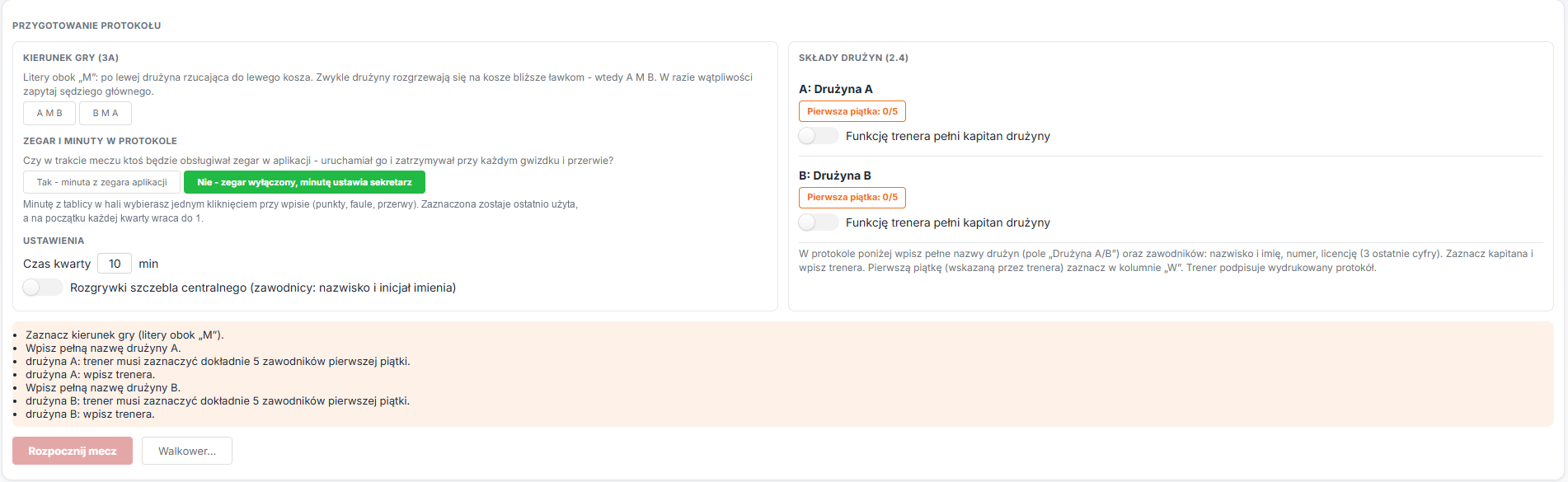
- Prepare the start – pick the direction of play (A M B or B M A), decide whether minutes come from the app clock, and mark the starting five in the “W” column. The start button circles the crosses.
- Enter events – click a player, then “+2”, “+3”, free throws or a foul. Timeouts, coach fouls and fights (Art. 39) have their own team buttons. Undo the last entry with one click or fix any entry in the entry history.
- End quarters with a button – it draws the line, enters the period score and crosses out the remaining team-foul boxes. A tie after the 4th quarter moves the game to overtime automatically.
- Print the scoresheet – after the game check the closing checklist and download the PDF. Coaches, referees, the scorer, the organiser and the medical staff sign the printout by hand.
App clock or minutes from the venue scoreboard?
Every entry on the scoresheet has a minute of the period – from 1 to 10, even though the game clock counts down. Before the game you choose one of two modes:
- app clock – someone at the table starts and stops it together with the game clock, and the minute is calculated automatically (10:00–9:00 is minute 1, 0:59–0:00 is minute 10). The clock bar stays at the top of the screen while you scroll,
- no clock – you pick the minute from the scoreboard with one click when entering an event. The last used minute stays selected, so if it has not changed you go straight to “+2” or the foul button.
Where is the electronic basketball scoresheet saved?
In your browser, on the device you run the game on. Every entry is saved immediately, so refreshing the page or closing the tab loses nothing. No data is sent to a server. Two things to remember:
- do not open the scoresheet in a private window and do not clear browser data until the game is over,
- the scoresheet stays on one device – you cannot move it to another computer, so print it at the end of the game. “New scoresheet” clears the sheet for the next game, and “Restart game” starts the game again with the same rosters.
Test version – share your feedback
The electronic basketball scoresheet is being tested. Run a game, a scrimmage or even part of a broadcast on it and tell us what works, what to improve and what is missing. We collect feedback in our WhatsApp group – you will also find a QR code to it on the scoresheet page. Feedback from scorers, referees and commissioners who fill in paper scoresheets every week is especially welcome.

Frequently asked questions
Do I need to log in to use the electronic basketball scoresheet?
No login and no tournament setup are needed. Just open tg-app.pl/protokol-5×5 in your browser.
Does it follow the scoresheet rules?
Yes – colours, lines, foul notation, team fouls, timeouts, crossing out, overtime and forfeits follow the Polish basketball scoresheet-writing rules. If you spot an entry that looks different from paper, let us know in the group – that is what the test version is for.
Are signatures collected in the app?
No. The printout leaves empty spaces for the signatures of the coaches, referees, scorer, organiser and medical staff, who sign by hand – just like on a regular scoresheet.
What if I make a mistake?
Undo the last entry or delete any entry in the entry history, where you can also correct the minute. The scoresheet redraws the running score, the result and the fouls immediately – no crossing out and no pen corrections.
Which device works best?
A laptop or a tablet. The scoresheet is as wide as the paper form, so on a phone you need to scroll sideways.