Schedule Generator: How to Build a Match Schedule Across Several Courts in 5 Steps
Dozens of matches, two courts and one tournament day. Here's how the Turniej Generator schedule generator assigns times and venues to your matches in minutes, with a preview before saving, easy corrections and no retyping.
 Redakcja TG
Contents
- What does the schedule generator do?
- How to build a match schedule with the schedule generator in 5 steps
- A schedule across several courts: a football tournament example
- Venues only: the schedule generator without times
- Fixing the schedule: delays, shifts and court changes
- League schedule generator
- Frequently asked questions
The draw is done, the format is chosen, and you know who plays whom. What’s left is the tedious part: when and where each match is played. With 30–60 matches on two courts, typing in times by hand takes an hour and usually ends with a mistake. The Turniej Generator schedule generator does it for you: select the matches, pick a court, set the start time and match length, and the schedule builds itself.
What does the schedule generator do?
The schedule generator assigns a venue (e.g. “Court A”, “Table 3”, “Mat 2”) and a start time to the matches you select. The first match starts at the time you set, and each next one follows after a fixed number of minutes. Matches are placed in fixture order (Berger tables), so rounds go one after another and players don’t play several matches in a row.
- works for tournaments and leagues, in any sport,
- lists only matches where both participants are already known,
- by default shows matches without a date, so you won’t overwrite what you’ve already planned,
- shows a preview of the whole schedule before saving,
- after saving, matches appear in the calendar and in live results right away.
Where does the “who plays whom” list come from? Turniej Generator creates it when you set up the competition: once you choose the format (round robin, groups, bracket or league), the pairings for every round are generated automatically. The schedule generator adds what the fixture list is missing: times and courts.
How to build a match schedule with the schedule generator in 5 steps
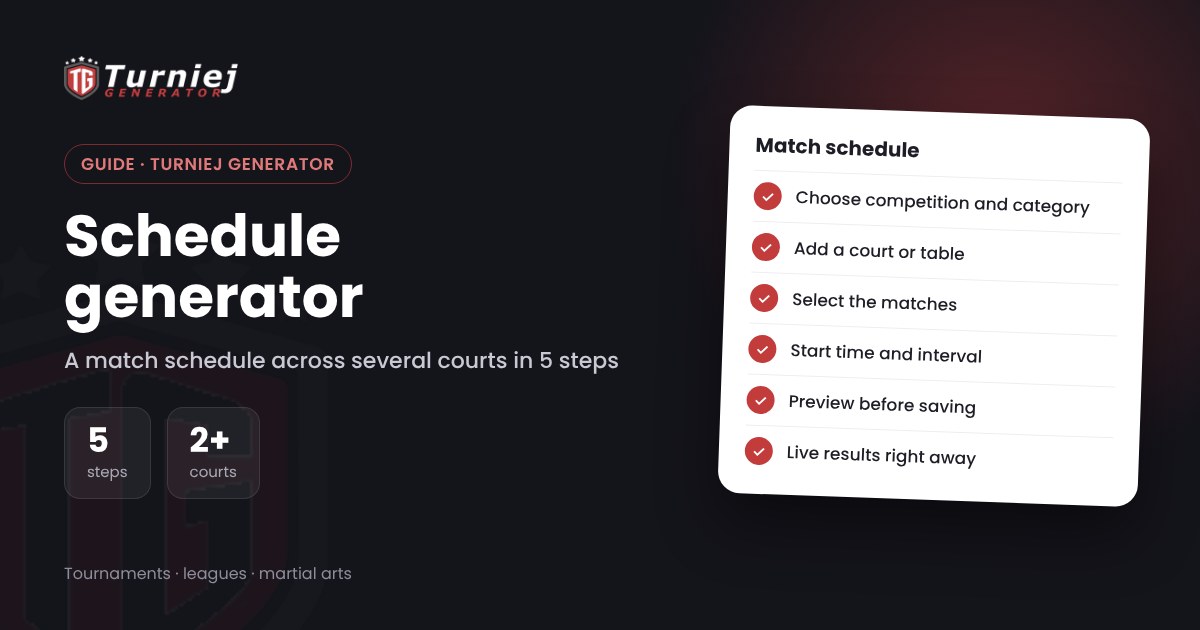
Open the schedule generator from the organizer panel: Calendar → “Generate schedule automatically”.
- Choose the competition: if you run several tournaments or leagues, the generator works on one at a time. Optionally narrow the list to a category (e.g. “U12”) and a round.
- Choose or add a venue: the generator suggests venues already used in the competition. Add a new one with one click, e.g. “Court A”.
- Select the matches: one by one or all visible matches at once.
- Set the start and interval: the time of the first match and “Next match every (minutes)”, i.e. match length plus changeover time.
- Check the preview and click “Apply schedule”: the preview table shows every match with its time and venue before anything is saved.
A schedule across several courts: a football tournament example
A football tournament: 12 teams in two groups of 6, round robin, two pitches, 10-minute matches plus 2 minutes for changeover. Each group has 15 matches.
| Run | Matches | Venue | Start | Every | Last match |
|---|---|---|---|---|---|
| 1 | Group A, 15 matches | Court A | 9:00 | 12 min | 11:48 |
| 2 | Group B, 15 matches | Court B | 9:00 | 12 min | 11:48 |
Two runs of the schedule generator and the whole group stage has times and courts. The knockout stage? Once the semi-finalists are known, filter by round and schedule them from, say, 12:15. A simple rule for event length: matches per court × interval in minutes. For match counts in each format, see our guide to the round robin tournament.
Venues only: the schedule generator without times
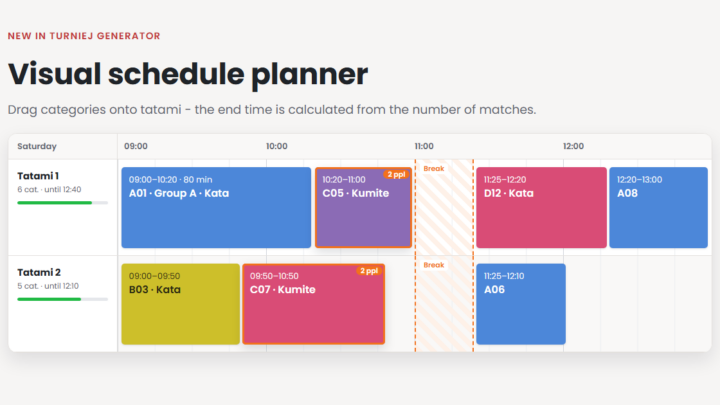
Times don’t always make sense. In martial arts or events with many categories, bouts run one after another and what matters is which mat a bout is on. In that case tick “Match place only (without generating dates)”: the schedule generator assigns only the venue and leaves existing dates unchanged.
Fixing the schedule: delays, shifts and court changes
- Shift a whole block: tick “Show all (including already scheduled)”, select the matches, set a new start time and apply again.
- A single match: drag it to another time in the calendar, or click it and change the venue or date.
- Start over: “Clear date/place” removes the date and venue from the selected matches.
Every change is visible in live results immediately, so players, coaches and parents see the current schedule on their phones, with no reprinting. The calendar and timeline are described on the Calendar and timeline page.
League schedule generator
In a league, matches are spread over weeks, but the schedule generator still saves time: filter by round, select its matches, choose the hall and set the times, e.g. Saturday from 10:00 every 90 minutes. Dates and venues go straight to the league fixtures and the league widget on your club website. More on planning a season: how to run an amateur league from fixtures to promotion and relegation.
Frequently asked questions
Where do I find the schedule generator?
Log in as an organizer and go to Calendar → “Generate schedule automatically”. The schedule generator works on matches from your tournaments and leagues.
Can I schedule matches on several courts at once?
Yes. One run of the generator covers one venue. For two courts, run it twice: e.g. group A on Court A and group B on Court B, both from the same start time.
Will the generator overwrite matches that already have a date?
Not unless you want it to. By default the list contains only matches without a date. Scheduled matches appear only after you tick “Show all (including already scheduled)”.
Why are some matches missing from the list?
The schedule generator lists only matches where both participants are known. Knockout matches appear once the earlier rounds are decided.